


Sunsets don’t argue with the coming night, they simply shine once more, soft and steady, in case someone still want to stay and watch.
Hike up
Sunsets don’t argue with the coming night, they simply shine once more, soft and steady, in case someone still want to stay and watch.
During college, I stumbled upon an interesting story of person named Daryl Davis, a Black American musician who has taken on racism in a very different way from what we are accustomed. Daryl Davis didn’t fight racism from afar; instead, he became involved with the Ku Klux Klan (KKK), a organization that believes only in the superiority of one race, to the exclusion of all others, and only allows for those of their race/beliefs to join.
At times, when my life was chaotic, Daryl Davis’ experiences opened my eyes and provided me with an entirely new perspective on how to deal with conflict while managing my emotions.
What was so unique about Daryl Davis’ activism was that he did not follow the typical activist playbook of having posters, marches, petitions or written manifestos. Rather, Daryl Davis was a listener who simply sat with members of the KKK and somehow transformed their hatred for people of color into empathy for them. An example is when he interviewed Roger Kelly, the national leader of the KKK. Many of Daryl’s friends stated he may be killed if he did so.
However, Daryl went on his own. Kelly and Daryl talked about a lot of things. They agreed about some, disagreed about many, but most importantly Kelly continued to tell Daryl how he was better than him because of his skin color and that Daryl would never be equal to him.
For most people, in such situations it would have been completely understandable to explode in anger and scream at Kelly for being wrong, to call him names for being a bad person and to possibly walk away from the conversation altogether. Daryl, however, was not trying to prove himself by winning a fight; he was attempting to derive an understanding of the place from which that poisonous attitude originated because he thought that if he could find the root of that attitude, then he could begin the process of removing it.
Daryl’s secret weapon for coping with this interaction with Kelly was respect. By showing Kelly the proper regard that was due him, Daryl was able to sit down with Kelly and allow him to voice his opinion; Daryl may not have agreed with all of Kelly’s ideas, but he allowed Kelly to express them while preserving his dignity, and he earned the opportunity to express his own opinion in return. Through this mutual respect, Daryl was able to crack open a door and allow some level of humanity to come in where hatred had previously ruled.
According to Daryl’s philosophy, we all have a cycle we fall into: we get fearful; we start accusing one another, which creates ignorance; ignorance creates fear because we fear what we don’t understand; if we allow this fear to continue to be present in the world without checking on it, that fear becomes the basis for hate, and through hate they will ultimately lead to destruction. The way for us to break that cycle as a people is through listening.
Patience as it pertains to listening is something that seems to be nearly lost in the world today. When you think of the world today, much of that activism has become shouts and insults, not only towards one another but labels like ‘racist’ and ‘fascist’ thrown around haphazardly. In the process it only fans the flame of hatred and there’s no path for understanding or real change to happen. We’re not immune to this at any level as we go through our daily lives, whether it be in protests, politics or everyday life. I know I wasn’t immune to it either.
I’m very much on the liberal side of the political spectrum, still I’m, but back in days I took great delight in mocking the right-wing Conservative political side without even taking the time to truly listen to any of their ideas or thoughts. All that created was division and increased the amount of hate, that is. If you truly want to be able to change the perspective of someone else, you’ve got to make them feel as if they’ve been heard. That requires dropping your guard and creating a space where both sides can share their stories with one another, instead of saying I’m right you are wrong.
You’ll learn from them, and they’ll learn from you, it’s a two-way street.
When I started thinking about how this lesson applies in my everyday life and relationships, I felt an incredible impact. I started to think about how often we label people rather than communicate with them or even give them a chance to show who they are. Daryl’s example continues to remind me to stop and deeply listen to people and to continue communicating with them even when pride gets in the way. People go through periods of difficulty and many times experience fear, hurt and other forms of stress during these phases, but this does not make them a bad person.
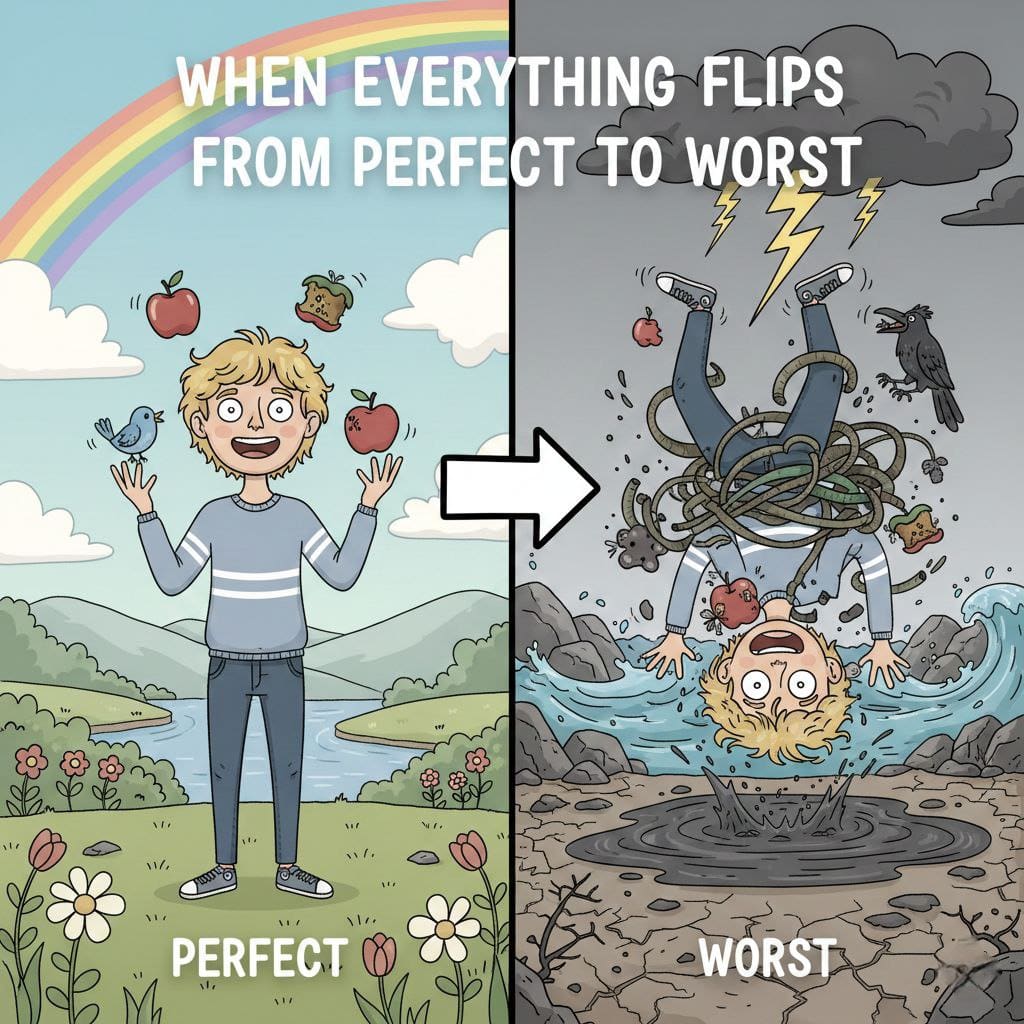
Continue reading “When Everything Flips from Perfect to Worst”
I have been thinking about this a lot lately, and honestly, I see it everywhere, social media, real life conversations, or sometimes even in my head.
We are flooded with relationship “advise” that’s designed to go viral but not to work in real life. We see these reels, telling us to leave the second we feel “disrespected.” We see memes screaming, “Know your worth, Queen.” We see influencers boasting about never compromising with their partners, and claiming anything other than that is oppression. Slowly without realizing, we start measuring our own relationships compared to these prescriptions. We limit our independent thinking, subconsciously follow the direction someone else provided: If our relationship doesn’t look or feel “perfect” as social media algorithm dictates, then we are failing as a couple.
So, when did we let a 15 second reel decide what’s “disrespect” in a relationship?
These short videos taken out of context will always be misinterpreted. You don’t know the person in the video, you just connect to their words without realizing they are sharing their own personal experience, which doesn’t and won’t equate to you. Their ideas, their thought process, their insecurities, aren’t yours, yet we unknowingly draw similarities and project your emotions and drawn conclusions. You ask the same person the same question after years, and they might have a complete different stance.
All these influence us to believe that mutual compromises in relationship dilute one’s self respect, and it’s either “stand your ground” or “you’re weak”. It amplifies the narratives and paints everything in black and white but the reality is always shades of grey.
The worst part of this phenomenon? The rules contradict with one another. Sometimes they tell us to stay loyal at all costs but also tells us “don’t ever let anyone dim your light.” It is always family first but on the other side they say “never lose yourself”. Or say “Be ride or die, but never settle”.
So, if you stay, you are oppressed. If you leave, you are selfish or “gave up too easy.” If you do a bit of both depending on the circumstances, then you are a hypocrite. You literally can’t win.
And because we are afraid to appear weak, we start to view any disagreement as disrespect to our dignity.
He didn’t reply fast enough becomes a sign of disrespect. She’s choosing to spend Christmas with her family instead of me, becomes she choosing them over me. We stop focusing on the person and begin to focus on the scoreboard: Am I winning or am I being walked on?
But the truth is often much less dramatic, he’s tired from work. Or, the way in which you initiated made her feel pressured instead of wanted. But because we have all swallowed the pill of “never allow someone to disrespect you.” we skip the vulnerable conversations (“Hey, I feel disconnected. Can we talk about what is going on?”), and we go right to resentment or an ultimatum.
You become upset about something minor, and the voice in your head suggests, “If you don’t address it, you are a doormat.” But, when you actually calm down and you think about it….is it really about self-respect or is it just our pride in better clothing?
If love was always perfectly balanced, then why do we even need the word “partnership”?
A relationship doesn’t go by a rule book, it ins’t a 50-50 effort, its ongoing and moves dynamically. On some days, I’m empty and she’s holding the fort 90%. On other days, she’s coming apart and I keep everything together. Or sometimes we both at 30%, and the math doesn’t even add up, but we both keep showing up anyway. That’s not losing self-respect, that’s love in the real world.
Continue reading “Love is Embracing Mutual Growth”Tailwind CSS v4 introduces significant changes, notably removing the Command Line Interface (CLI) binary from its main npm package. While this streamlines integration with bundlers like Vite, it breaks the classic npx tailwindcss init setup essential for WordPress theme and plugin development.
This guide provides the robust, step-by-step method for installing and running Tailwind CSS v4 inside your WordPress plugin directory on a Linux environment, solving the common issues of the missing CLI and the “unknown utility class” error.
Since the standard npm install tailwindcss no longer provides the executable, we must download the official Standalone CLI binary.
Navigate to your plugin’s root directory (where your main PHP file resides) and set up the Node environment.
# Navigate to your plugin root
cd /path/to/wp-content/plugins/your-plugin-name

# Initialize project
npm init -y

# Install PostCSS and Autoprefixer (still required)
npm install -D tailwindcss@4 postcss autoprefixer
mkdir -p tailwind-cli
cd tailwind-cli
2. Download the Linux x64 Executable: (Verify the URL for the exact version if needed.)
curl -sLO https://github.com/tailwindlabs/tailwindcss/releases/download/v4.1.16/tailwindcss-linux-x643. Rename and Grant Execute Permissions (Critical): This step prevents the Exec format error.
mv tailwindcss-linux-x64 tailwindcss
chmod +x tailwindcss
cd .. # Return to plugin root
mkdir -p src dist
Since the init command is removed in v4, we manually create all necessary files.
We might have this question pop up once in your lifetime: “Who comes first wife or mother?” It’s one of those classic debates that sparks heated arguments in social media, family WhatsApp groups, or a late-night conversations with your spouse. But honestly, the more I think about it, the more I dislike the question itself.
Why? Because framing it as “wife or mother” quietly reinforces an old gender stereotype that it’s always the man’s job to “choose,” and somehow the woman’s family doesn’t carry the same weight. It’s a setup loaded with gender bias and, frankly, a bit of internalized misogyny.
A fairer way to ask it would be: Who comes first, spouse or parents?
That small rephrase changes everything. It puts both partners on equal footing and reminds us that this dilemma isn’t exclusive to one gender. Men and women alike wrestle with it, and both can get it right or very wrong.
So let’s talk about it that way from here on out: spouse or parents?
The Short Answer: Your Spouse Comes First
Once you’re married or in a committed partnership, your spouse becomes your primary family unit. That person is the one you’re building a life with, sharing a home, your finances, your dreams, and some day maybe kids.
Prioritizing them doesn’t mean ditching your parents. It simply means your loyalty, emotional energy, and big decisions now lean toward the person you chose to team up with for the long haul.
I have heard the counter arguments plenty of times: “Parents are forever; spouses can be replaced.” Or “Your parents raised you they’ll always have your back, even when your husband/wife leaves you”. Those lines sound comforting on the surface, but they’re dismissive of what marriage actually is.
First, such statements treat your spouse as someone temporary or interchangeable. This mindset is not only unhealthy but it quietly undermines the very commitment you’ve made. When you enter a marriage or any long term partnership, it isn’t meant to be entered with an emotional “escape hatch” already planned. When you carry such a view, deep down you’re less likely to invest fully, communicate openly, or work through tough times because you’re expecting it to fail anyway. Such cynical beliefs cause you to turn to your parents for advise or support before your spouse at first sign of conflicts, reinforcing the idea that your spouse is secondary.
Second, this mentality is damaging as it creates a hierarchy where parents are placed on a pedestal of “guaranteed” loyalty, while your partner is seen as conditional. That’s not fair to the person you’ve chosen to build a life with. Your spouse isn’t just a romantic option you choose to be with, but the person with whom you are building your new family. Dismissing them as “replaceable” sends the message that your relationship you’re actively living every day matters less than the one you were born into. This isn’t fair to either partner whether you’re a man or a women who’s building a life together
And perhaps most importantly, this mentality can be passed down to the next generation. Children will quickly pick up on your attitude about marriage and learn to develop similar beliefs about marriage. If they grow up hearing that marriage is fragile and secondary, they may enter their own relationships with similar perspective.
Continue reading “Who Comes First: Your Wife or Your Mother?”Thought is the greatest hindrance to love. Thought creates a division between ‘what is’ and ‘what should be,’ and on this division morality is based, but neither the moral nor the immoral know love.

WordPress Studio, developed by Automattic, is a powerful open-source tool for managing local WordPress development environments. While pre-built binaries exist for macOS and Windows, Linux users must build the app from source. This guide walks you through setting up and running Studio on Ubuntu, including resolving common issues I encountered.
Before starting, ensure your Ubuntu system is ready with the necessary tools. Open a terminal (Ctrl+Alt+T) and follow these steps.
Keep your package lists and software up to date:
sudo apt update && sudo apt upgrade -y
Git is required to clone the Studio repository. Install it if you haven’t already:
sudo apt install git -y
Studio is built using Node.js, and nvm helps manage the specific Node.js version required. Install nvm with:
curl -o- https://raw.githubusercontent.com/nvm-sh/nvm/v0.39.7/install.sh | bash
After installation, reload your shell configuration to make nvm available:
source ~/.bashrc
Verify nvm is installed:
nvm --version
You should see a version number (e.g., 0.39.7). If not, close and reopen your terminal, then try again.
Have we looked at ourselves at all?
Most of us have not, because we are proud of our experiences, knowledge, achievement, capacity, opinion. We cling to them, and there is the sense of pride in not giving up an opinion if we have formulated one, not giving up our accumulated knowledge, experience, tradition. We take pride in that, and so pride prevents us from observing ourselves. By dropping pride I can look at myself with great humility. Right? Can we do that?
~ J. Krishnamurti in Saanen, Switzerland, 1 August 1968.












Our favorite place is right where we are.


In every walk with nature, one receives far more than he seeks.